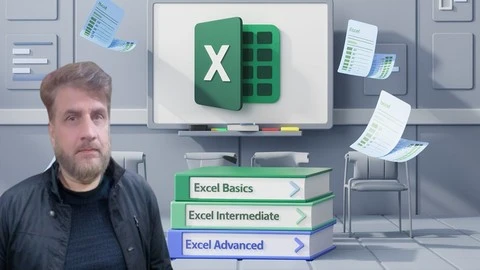
What you’ll learn
- Master Essential Office Tools: Gain proficiency in key software like Excel, Word, and PowerPoint to streamline tasks and boost productivity.
- Optimize Data Management: Learn to organize, analyze, and visualize data efficiently using advanced features in Excel or Google Sheets.
- Create Professional Documents & Presentations: Develop the ability to craft polished impactful documents and presentations that stand out in a business setting.
- Enhance Collaboration & Workflow: Unlock the power of collaboration tools and time management strategies to improve team communication and productivity.
Requirements
No prior experience required! This course is designed for both beginners and experienced users. Whether you’re just starting out or looking to enhance your existing Excel skills, this course has something for everyone. Recommended Skills and Tools: Basic Computer Skills: Familiarity with using a computer, including navigating files and folders, typing, and internet browsing. Access to Excel: You will need access to Microsoft Excel (any version) or Google Sheets to follow along with the course exercises. A desktop or laptop is recommended for the best learning experience. Enthusiasm to Learn: A willingness to explore, practice, and apply the tools taught in the course to real-world scenarios.
Description
Are you ready to transform your Excel skills from basic to brilliant? Welcome to Excel Mastery: Unlock the Power of Data—your comprehensive guide to mastering one of the most powerful tools in the business world!In this dynamic course, you’ll embark on a journey that caters to all skill levels, whether you’re a complete beginner or looking to sharpen your existing expertise. With hands-on exercises, real-world examples, and interactive quizzes, you’ll learn everything from the fundamentals of spreadsheet navigation to advanced functions that can turn complex data into actionable insights.What You’ll Learn:Essential Functions & Formulas: Master essential Excel functions like SUM, AVERAGE, VLOOKUP, and IF to analyze and manipulate data efficiently.Data Visualization: Create stunning charts, graphs, and dashboards that bring your data to life and enhance your presentations.Data Management Techniques: Organize and analyze large datasets using PivotTables and advanced filtering options for smarter decision-making.Time-Saving Tips & Tricks: Discover shortcuts and best practices that will boost your productivity and save you hours of work.Real-World Applications: Apply your skills to practical scenarios, including budgeting, financial modeling, and data analysis projects.Why Choose This Course?Flexible Learning: Learn at your own pace with lifetime access to course materials and updates.Engaging Content: Enjoy a mix of video lectures, hands-on assignments, and quizzes designed to reinforce your learning.Supportive Community: Join a vibrant community of learners, share your progress, and get feedback from peers and instructors.Whether you want to enhance your career prospects, increase your productivity, or simply gain confidence in using Excel, this course is your gateway to success. Enroll today and take the first step towards Excel mastery!Unlock your potential and turn data into insights with Excel Mastery!
Overview
Section 1: Promotional Video
Lecture 1 Introduction of course
Section 2: Introduction
Lecture 2 Introduction to Microsoft Excel 101 Course
Section 3: Basic Concepts
Lecture 3 Basic Concepts of Microsoft Excel
Section 4: Inputting and Adjusting
Lecture 4 Inputting and Adjusting Text and Equations
Section 5: Excel Functions
Lecture 5 Utilizing Primary Excel Functions
Section 6: Modifications
Lecture 6 Modifying an Excel Spreadsheet
Section 7: Data Formatting
Lecture 7 Formatting Data within an Excel Spreadsheet
Section 8: Incorporating and Geometric Figures
Lecture 8 Incorporating Images and Geometric Figures into an Excel Spreadsheet
Section 9: Developing Charts
Lecture 9 Developing Simple Charts in Excel
Section 10: Printing
Lecture 10 Printing Excel Spreadsheets
Section 11: Templates
Lecture 11 Utilizing Excel Templates
Section 12: Practice
Lecture 12 Practice with Excel 101 – Apply What You’ve Learned
Section 13: Microsoft Excel 102 Course
Lecture 13 Introduction to Microsoft Excel 102 Course
Section 14: Managing Data Set
Lecture 14 Managing an Excel Data Set
Section 15: Functions For Data Set
Lecture 15 Functions for Excel Data Sets
Section 16: Validation
Lecture 16 Validation of Data in Excel
Section 17: Transferring Data
Lecture 17 Transferring Data In and Out
Section 18: Pivot Table
Lecture 18 Employing Pivot Tables in Excel
Section 19: Power Pivot Tools
Lecture 19 Harnessing Excel’s PowerPivot Tools
Section 20: Handling Extensive Sets
Lecture 20 Handling Extensive Sets of Excel Data
Section 21: Additional
Lecture 21 Additional Exercises for Excel 102
Section 22: Microsoft Excel 103 Course
Lecture 22 Introduction to Microsoft Excel 103 Course
Section 23: Conditional Functions
Lecture 23 Employing Conditional Functions in Excel
Section 24: Lookup Functions
Lecture 24 Utilizing Lookup Functions in Excel
Section 25: Manipulating Functions
Lecture 25 Manipulating Text-Based Functions in Excel
Section 26: Review
Lecture 26 Reviewing an Excel Spreadsheet
Section 27: Security
Lecture 27 Securing Excel Spreadsheets and Workbooks
Section 28: Hypothetical Tools
Lecture 28 Mastering Excel’s Hypothetical Tools
Section 29: Automating Tasks
Lecture 29 Automating Routine Tasks in Excel with Macros
Section 30: Additional
Lecture 30 Additional Exercises for Excel 103
Section 31: Well done!
Section 32: Excel Macros and VBA Course
Lecture 31 Introduction to Microsoft Excel Macros and VBA Course
Section 33: Excel’s Macro Recorder Tool
Lecture 32 Utilizing Excel’s Macro Recorder Tool
Section 34: Excel VBA
Lecture 33 Concepts of Excel VBA
Section 35: Logic Statements
Lecture 34 Employing Logic Statements in Excel VBA
Section 36: Basics into VBA
Lecture 35 Progressing Beyond the Basics into VBA
Section 37: Organizing and Cleansing Data
Lecture 36 Organizing and Cleansing Data with Excel VBA
Section 38: Automate Excel Equations
Lecture 37 Utilizing VBA to Automate Excel Equations
Section 39: Integrating Weekly Report
Lecture 38 Integrating Everything into a Weekly Report
Section 40: Excel VBA User Forms
Lecture 39 Engaging with Excel VBA User Forms
This course is perfect for beginners, professionals, students, small business owners, job seekers, and experienced users looking to enhance their Excel skills and boost productivity.